
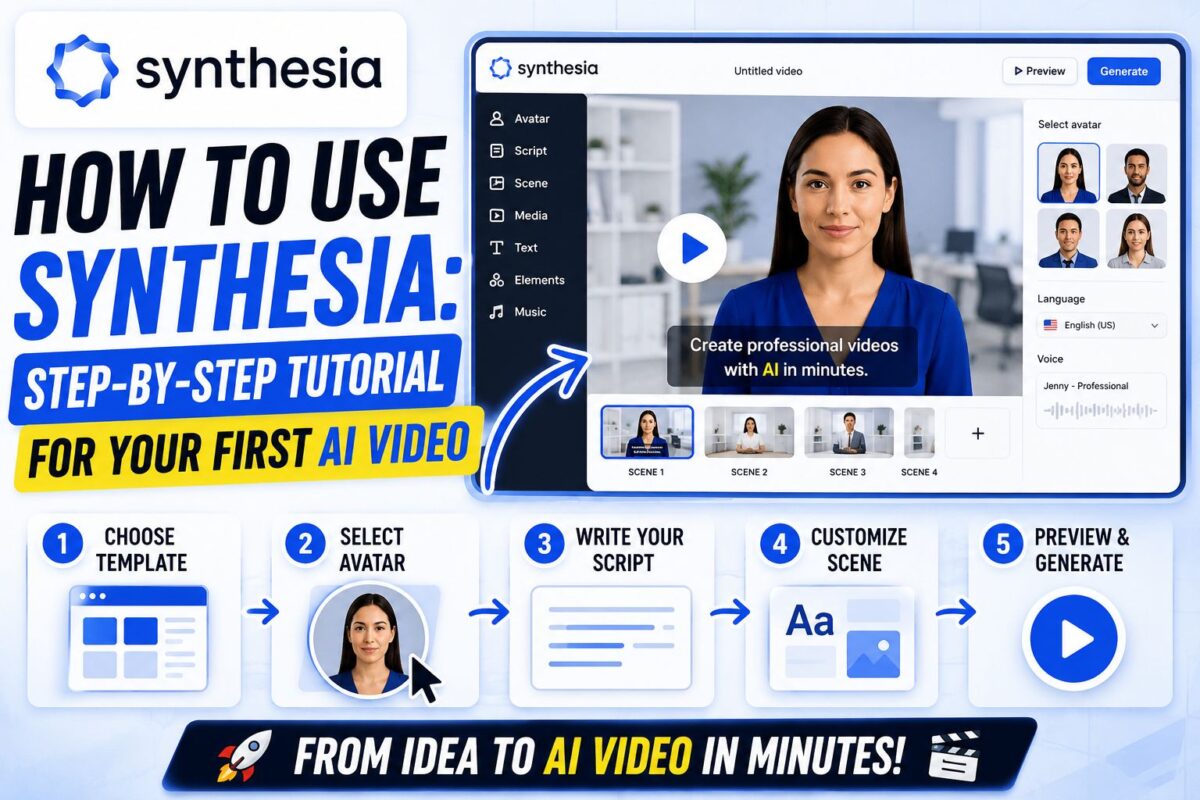
Learning how to use Synthesia takes about 15 minutes, and producing your first finished AI video takes maybe 30 — that's the honest timeline, and it's the main reason the platform won over teams who dreaded traditional video production.
If you've ever built a PowerPoint deck, you already have every skill this Synthesia tutorial requires. You write a script, pick an avatar, arrange a few scenes, and hit generate. No camera, no microphone, no timeline editing.
This guide walks the full 2026 workflow — including the new chat-based Assistant, PowerPoint import, and screen recording — plus the script-writing habits that separate videos that feel professional from ones that feel robotic. (If you're still deciding whether the platform is right for you at all, start with my complete Synthesia review first.)
Grab a Free Synthesia Account Before Step 1 — Takes 2 MinutesKey Takeaways
- The core workflow is four steps: script → avatar → scenes → generate. A typical 2–5 minute video takes 15–30 minutes to build and 5–10 minutes to render.
- The 2026 Assistant can build a full video draft from a prompt, a PDF/PPTX/DOCX upload, or a URL — then edit scripts and visuals for you in real time.
- Script quality determines roughly 80% of output quality: short sentences, one idea per scene, ~120–140 words per video minute.
- Preview before generating — re-renders burn credits, and credits are the real currency of the platform.
Step 1: Create Your Account and Choose a Starting Point
Head to synthesia.io and sign up — the free tier requires no credit card and gives you roughly 10 minutes of (watermarked) video per month, which is plenty for learning. The exact limits are covered in my Synthesia free plan breakdown.
From the New Video screen, you'll choose one of four starting points:
- Start with Assistant — the AI builds a draft for you (best for beginners; covered next)
- Template — 60+ pre-built layouts for training, demos, explainers, and HR content
- Blank canvas — full manual control
- Import PowerPoint — converts your deck into scenes, with speaker notes becoming the script
My recommendation for a first video: use a template. Templates solve the design problem so you can focus on the script, and the layouts already follow good pacing conventions.
Step 2: Build a Draft with the Assistant (the 2026 Way)
The chat-based Assistant is the biggest workflow change in current Synthesia, replacing the older form-based AI Video Assistant. It's agentic — it doesn't just suggest edits, it makes them inside your project in real time.
Give it any combination of:
- A prompt describing your topic, audience, and objective
- An attachment — PDF, PPTX, DOCX, or other text files (up to 50MB)
- A URL — any public page under ~4,500 words
Then set your parameters: duration (30 seconds to 5 minutes), pacing style (Cinematic for shorter scenes with frequent cuts), and optionally a template. The Assistant generates an outline of chapters and key points — edit this outline before generating, because fixing structure here is free while fixing it after render costs credits.
If you already have exact wording, use Import from script instead: your text is used verbatim, and each paragraph becomes a new scene.
Open Synthesia Free and Follow Along — No Credit Card NeededStep 3: Write a Script That Doesn't Sound Robotic
Here's the truth every experienced user learns: the script determines about 80% of your video's success. The avatar can only deliver what you write, and AI voices expose weak writing mercilessly.
The rules that matter:
- Budget 120–140 words per minute of video. A 2-minute video is roughly a 260-word script.
- One idea per scene. Every paragraph break creates a new scene — use that structure deliberately.
- Short sentences with natural punctuation. Commas create pauses; the voice engine reads punctuation as pacing instructions.
- Read it aloud yourself first. If you stumble, the avatar will sound stiff.
- Watch brand names, acronyms, and technical terms — these cause the most mispronunciations. Preview them specifically before generating.
- Match length to purpose: 45–90 seconds for marketing explainers, 2–4 minutes for tutorials, 5–7 minutes maximum for detailed training chunks.
If you're planning multilingual versions later, write for translation from the start: simple language, no idioms. The localization workflow is genuinely excellent — my guide to Synthesia video translation covers turning one script into 140+ language versions.
Step 4: Choose Your Avatar and Voice
Synthesia's library now includes 240+ stock avatars (your plan determines access: 9 on Free, 125+ on Starter, 180+ on Creator), each available in multiple framings like waist-up and chest-up.
Practical selection advice:
- Match formality to context. Corporate presenters for compliance content; warmer, casual avatars for onboarding.
- Preview the voice with your actual script, not the sample text. Filter voices by language, accent, gender, and tone — there are options across 160+ languages.
- Expressive avatars adapt to your script's emotional register — worth using for anything beyond neutral information delivery.
You can also create a digital twin of yourself. Annual plans include Personal Avatar slots (webcam-based), while the studio-grade version is a paid add-on — the full process, costs, and consent requirements are in my guide to Synthesia custom avatars.
Step 5: Build Your Scenes
The editor works like presentation software. For each scene you can:
- Adjust layouts — text placement, avatar position and framing
- Add media — upload images and video, or pull from integrated stock libraries
- Add text elements, shapes, and animations — with entrance effects and scene transitions
- Apply consistent branding — use the “Change all” color function to apply brand colors across every scene at once (full brand kits are Enterprise-only)
- Add music — from the built-in library or your own upload, kept quiet under narration
For product tutorials, use the built-in screen recorder: add a scene, choose Screen Recording, capture your walkthrough, then overlay an avatar to narrate it. This combination — real UI footage plus AI presenter — is the most effective format for software how-tos.
Keep each scene focused on a single action or idea. Shorter scenes are also easier to update later without re-rendering everything.
Step 6: Preview, Generate, and Share
Always preview before generating. This is the step beginners skip and regret: re-rendering after you spot a typo or mispronunciation costs credits again, and on a 10-minute monthly allowance, careless re-renders hurt. Check pronunciation of names and acronyms, scene pacing, and text timing.
Satisfied? Hit Generate. Most videos render in a few minutes. From there you can download the MP4 (paid plans), copy a share link (all plans, including free), embed the video on a webpage, or export audio separately (Creator and up).
One underrated feature: embedded videos update automatically. Edit the script and regenerate, and every page embedding that video shows the new version — no re-uploading. For teams maintaining SOP or policy content, this is quietly the platform's best trick.
Build Your First AI Video in 30 Minutes — Start Free HerePro Tips From Heavy Users
- Template your recurring formats. If you produce weekly updates or training modules, build the layout once and reuse it — video #20 should take a quarter of the time video #1 did.
- Test on mobile. If text is readable on a phone, it's readable everywhere.
- Batch your production to fit the monthly minute allowance — credits don't roll over, so an even production rhythm wastes nothing.
- Scale with the API. Once your format is stable, programmatic generation (including CSV-driven personalization for hundreds of variants) is covered in my Synthesia API guide.
FAQ: How to Use Synthesia
How long does it take to make a video with Synthesia?
A typical 2-minute video takes 15–20 minutes to script and build, plus 5–10 minutes to render. Your first attempt will take longer; templated repeat formats take far less.
Do I need video editing experience?
No. The interface deliberately resembles presentation software. If you can build slides, you can build a Synthesia video — that's the most consistent piece of user feedback the platform gets.
Can I upload my own PowerPoint?
Yes — PPTX import converts slides into scenes while retaining your original designs, and speaker notes are converted into the narration script automatically. It's the fastest path for teams with existing training decks.
Why does my avatar mispronounce certain words?
Brand names, acronyms, and technical vocabulary are the usual culprits. Preview those scenes specifically, and adjust spelling phonetically or add punctuation to guide pacing before you spend credits on the final render.
Can I use Synthesia for free while learning?
Yes — the free plan includes roughly 10 minutes of watermarked video per month with 9 avatars, which is enough to learn the entire workflow before deciding on a paid tier.
The Bottom Line
The workflow really is as simple as advertised: script, avatar, scenes, generate — with the script deserving most of your effort. Spend your first free session building one real video for your actual use case rather than a toy demo, and you'll know within half an hour whether this tool fits your work. That's ultimately how to use Synthesia well: treat it as a fast, repeatable production system, not a one-off novelty.
