
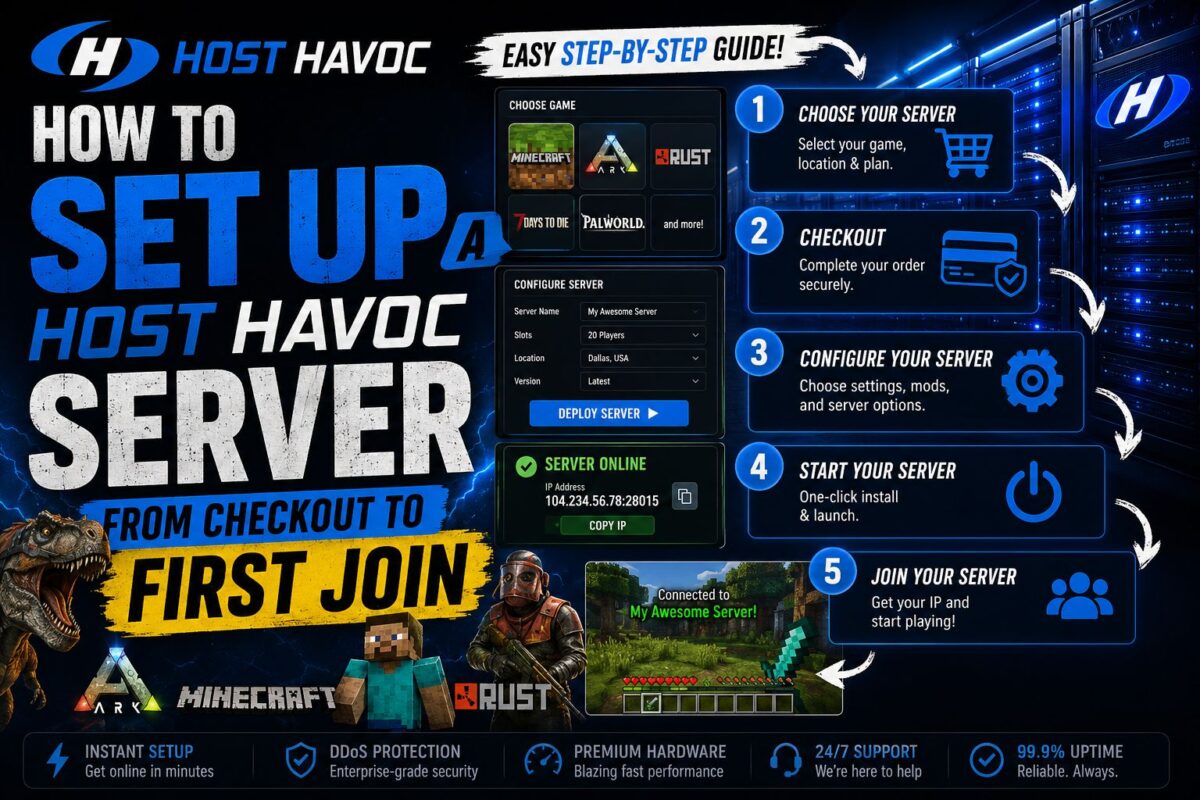
Learning how to set up a Host Havoc server takes most first-timers under 15 minutes from payment to a joinable server — because provisioning is automated and installs complete within seconds of checkout. The parts people actually get stuck on are plan sizing, version/modpack selection, and knowing which panel settings matter on day one.
This walkthrough covers the full path: choosing the right plan, checkout (with the discounts that stack), panel orientation, mod installation, backups, and getting your first players connected — plus the one deadline you cannot ignore.
Key Takeaways
- Servers provision automatically within minutes of payment — panel credentials arrive by email immediately
- Minecraft uses the Multicraft panel; every other game uses a modified TCAdmin v2 — both cover console, FTP, backups, and scheduled tasks
- Size by player count and mod weight — go one tier up from vanilla guidance if you're running modpacks
- Stress-test within 72 hours — that's the full-refund window, and it's half the industry standard
Step 1: Choose the Right Plan Before Checkout
Plan sizing is where most setup regret originates, so get it right first.
For Minecraft (per-GB RAM plans): 2–5 vanilla friends → GRASS/WOOD (1–2 GB). 10–20 vanilla players → STONE/COAL (3–4 GB). Modded groups of 20–40 → IRON/BRICK (6–8 GB, free dedicated IP included from IRON up). Public ambitions → GOLD/DIAMOND. The golden rule: modpacks need one tier above what your player count suggests.
For other games (per-slot, unlimited storage): buy your realistic peak population, not your dream — Rust runs ~$0.53/slot, DayZ ~$0.93/slot, and pricing scales linearly, so unused slots are pure waste. Upgrades later don't require a rebuild.
Full plan-by-plan math (and which model your game uses) is in our host havoc pricing breakdown.
Step 2: Checkout — and Stack Your Discounts
At the configurator, pick your game, size, and datacenter location — choose the node closest to your player base's center of gravity, not to you personally. Host Havoc offers 13+ locations across North America, Europe, Sydney, and Singapore, so most groups can keep ping under 50ms.
Before paying, two savings moves take thirty seconds: enter a recurring 10% promo code in the discount box (verified codes tracked in our host havoc coupon code roundup), and consider annual billing for the automatic 12% discount — though first-timers may prefer starting monthly and switching later, since there are no contracts either way.
Pay via card or PayPal. Provisioning kicks off automatically — your server installs within seconds to minutes, and an email delivers your control panel URL and credentials.
Start here: configure your server at Host Havoc →Step 3: Get Oriented in the Control Panel
Which panel you land in depends on your game:
Minecraft → Multicraft. The industry-standard Minecraft panel: live console, file manager, player management, and the settings that matter on day one — server version (Paper, Spigot, Forge, Fabric, or vanilla switches in-panel) and the one-click modpack installer covering FTB, CurseForge, and more, maintained in-house so packs stay current.
Everything else → modified TCAdmin v2. Console, file manager, Steam Workshop mod integration where the game supports it, config editors, and command-line argument controls.
Both panels share the operational core you should configure in your first session: scheduled tasks (set an automated daily restart — every long-running game server benefits), automated backups (enabled by default and stored off the live disk; confirm the schedule and test a restore once), and sub-user permissions (give moderators panel access without sharing your master login).
Neither panel is pretty. Both are fast and stable, and every routine admin task is one or two clicks deep.
Step 4: Install Mods, Upload Worlds, and Configure
Mods and modpacks: For Minecraft, the panel installer handles popular packs in one click; anything custom uploads via full FTP access (credentials in the panel). For Steam games, Workshop mods install through the panel with FTP as the fallback for manual work.
Migrating an existing world: Host Havoc publishes a guided migration process — download your world from the old host, upload via FTP, point the server config at it. If FTP intimidates you, open a ticket: support handles migrations and typically responds in under 10 minutes.
Core config: Set your server name/MOTD, whitelist or password if private, and game-specific settings through the config editor. For wipe-cycle games like Rust, build your wipe schedule into scheduled tasks now — future you will be grateful (game-specific automation detail is in our host havoc rust server hosting review).
Step 5: Invite Players — and Beat the 72-Hour Clock
Grab your server IP (or dedicated IP on eligible plans) from the panel and share it. Players connect the standard way for your game — direct connect, server browser, or favorites list.
Now the critical part of knowing how to set up a Host Havoc server properly: the 72-hour money-back window starts at purchase, not at your first login. Your first two days should be a deliberate stress test — load your real modpack, invite your actual players, run peak-hour sessions. If anything disappoints, a full refund is one ticket away inside the window; outside it, you're negotiating. The complete fine print is in our host havoc free trial guide.
If problems surface, use the ticket desk before assuming the worst — the sub-10-minute response pattern across 1,500+ reviews is the company's strongest asset, and reviewers consistently describe staff as patient with first-time admins. And if something feels off about billing or policies, our is host havoc legit investigation covers what to document and why. Should the fit genuinely not work inside your 72-hour window, refund and pick from our vetted host havoc alternatives instead — no sunk-cost servers.
Launch your server now — provisioned in minutes →FAQ
How long does Host Havoc take to set up a server? Provisioning is automatic and completes within seconds to a few minutes of payment. Including plan selection and basic configuration, most first-timers go from checkout to a joinable server in under 15 minutes.
Do I need technical skills to run a Host Havoc server? No. The panels handle everything through a web interface — one-click mod installs, config editors, automated backups — and support responds in minutes when you're stuck. FTP knowledge helps for custom work but isn't required to start.
Can I change my server's location after setup? Yes, via support ticket — though it's cleaner to choose correctly at checkout. Pick the datacenter nearest your players' geographic center, not your own location.
How do I add more RAM or slots later? Upgrade from the billing area — plans scale up (and down) without rebuilding your server, and your world files carry over. Month-to-month billing means resizing carries no contract penalty.
You're Live — What's Next?
That's the complete path for how to set up a Host Havoc server: size honestly, stack the checkout discounts, configure restarts and backups in your first panel session, migrate or mod via one-click and FTP, and spend your 72-hour window stress-testing like it's your job. For the broader picture of what you just bought — hardware, support record, and the honest downsides — the full host havoc review has the complete evaluation.
Set up your Host Havoc server today — 72-hour refund protection →Follow these five steps and how to set up a Host Havoc server becomes a 15-minute task instead of a weekend project.
